
Heat is one of the biggest hidden threats to computer performance and hardware lifespan. Whether you are dealing with a laptop overheating problem, a pc fan loud issue, or a gaming PC overheating during heavy use, excessive heat can quickly turn a fast computer into a slow, unstable, and unreliable system.
Many users ignore early overheating symptoms until serious problems appear:
- Sudden lag
- Random shutdowns
- Black screens
- Loud fan noise
- Reduced gaming performance
- Hardware damage
The good news is that overheating problems are often preventable — and in many cases, fixable.
In this guide, you’ll learn:
- Why laptops and PCs overheat
- The biggest overheating warning signs
- Why CPU temperatures become too high
- How to cool down your computer properly
- When overheating becomes dangerous
- When professional repair or cleaning is necessary
Why Laptop Overheating Happens in 2026
Modern systems generate more heat than ever because they now handle:
- Gaming
- Video editing
- AI-powered applications
- Multitasking
- Real-time background processing
- Windows 11 security tasks
If cooling systems cannot remove heat efficiently, internal temperatures rise quickly.
Common overheating causes include:
- Dust buildup
- Blocked airflow
- Failing cooling fans
- Old thermal paste
- High-performance gaming loads
- Background software overload
This is why searches for:
“laptop overheating”
and
“gaming PC overheating”
continue increasing every year.
Intel CPU temperature and thermal management documentation
1. Loud Fan Noise Is One of the First Signs Your PC Is Overheating
One of the clearest overheating warnings is:
“PC fan loud”
Fans become louder when the system tries to cool rising internal temperatures.
Common symptoms:
- Constant fan spinning
- Sudden fan speed increases
- Loud airflow noise during simple tasks
- Fans running even while idle
This usually means:
- The cooling system is struggling
- Dust buildup restricts airflow
- CPU temperatures are too high
2. High CPU Temperature Causes Performance Problems
A:
“CPU temperature high”
problem affects both performance and hardware lifespan.
When CPU temperatures rise too much:
- Windows reduces performance automatically
- Gaming FPS drops
- Applications lag
- System responsiveness decreases
This process is called:
Thermal throttling.
Thermal throttling protects hardware from heat damage but severely reduces performance.
3. Gaming PC Overheating During Heavy Use
Gaming systems generate significantly more heat because they push:
- CPU performance
- GPU performance
- Power consumption
- Cooling systems
Common gaming overheating signs:
- FPS drops
- Random shutdowns
- Loud fans
- Stuttering during gameplay
- System crashes
Gaming PCs require:
- Strong airflow
- Proper cooling
- Clean fans
- Quality thermal management
4. Laptop Overheating Can Damage Hardware
Many laptops have compact internal designs with limited airflow.
Over time:
- Dust accumulates
- Fans weaken
- Thermal paste dries out
This causes:
- Higher temperatures
- Reduced cooling efficiency
- Faster hardware wear
Severe laptop overheating may eventually damage:
- CPU
- GPU
- Battery
- Motherboard
5. Why Your Computer Gets Hot Even During Simple Tasks
If your computer overheats while:
- Browsing
- Watching videos
- Using Office apps
the issue may involve:
- Malware
- Background processes
- Cooling system blockage
- Fan failure
In some cases, hidden software activity pushes CPU usage constantly high.
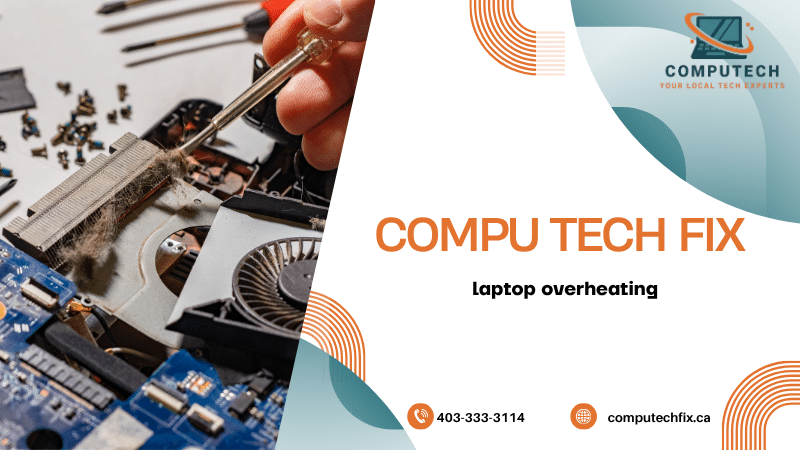
Virus Removal Services Calgary
6. Dust Buildup Is a Major Cause of Overheating
Dust blocks:
- Air vents
- Cooling fans
- Heat sinks
This reduces airflow dramatically.
Signs of dust buildup:
- Loud fans
- Hot laptop surfaces
- Reduced airflow from vents
- Increased temperatures over time
Professional internal cleaning often restores cooling performance immediately.
7. Old Thermal Paste Causes CPU Temperature High Problems
Thermal paste transfers heat from the CPU to the cooling system.
Over time, thermal paste dries out and loses effectiveness.
Symptoms:
- Sudden overheating
- High idle temperatures
- Performance drops
- Loud fan activity
Replacing thermal paste is one of the most effective advanced cooling fixes.
8. Poor Airflow Setup Increases Heat
Many users unintentionally trap heat by:
- Using laptops on beds or couches
- Blocking ventilation areas
- Placing PCs in enclosed spaces
How to improve airflow:
- Keep vents clear
- Elevate laptops slightly
- Improve room ventilation
- Use cooling pads if needed
9. Overheating Can Cause Startup Problems and Crashes
Severe heat may cause:
- Black screens
- Random shutdowns
- Boot failures
- System instability
Many users searching:
“computer won’t turn on”
later discover overheating caused internal hardware damage.
Signs Your PC Is Overheating
Common overheating symptoms include:
| Symptom | Possible Cause |
|---|---|
| Loud fan noise | Cooling overload |
| Hot laptop surface | Restricted airflow |
| FPS drops | Thermal throttling |
| Sudden shutdowns | Severe overheating |
| Lag during gaming | High CPU temperature |
| Random freezing | Heat instability |
Recognizing these signs early helps prevent serious hardware damage.
How To Cool Down Your Computer Properly
If your system overheats, start with:
Step 1:
Clean vents and airflow areas.
Step 2:
Close unnecessary background applications.
Step 3:
Update drivers and Windows components.
Step 4:
Check for malware or hidden CPU usage.
Step 5:
Use proper airflow and cooling placement.
Step 6:
Seek professional internal cleaning if temperatures remain high.
How SSD Upgrades Help Reduce Heat
Older HDD drives generate:
- More heat
- More vibration
- Slower performance
Modern SSD upgrades:
- Run cooler
- Improve speed
- Reduce power consumption
Best SSD Upgrades for Windows 11
Real-World Insight: What Most Users Get Wrong
From real repair and overheating cases:
- Users often ignore loud fans for months
- Dust buildup is extremely common
- Gaming laptops overheat faster than expected
- Many overheating systems only need cleaning and thermal maintenance
One of the biggest misconceptions:
“Heat is normal, so I should ignore it.”
In reality, long-term overheating shortens hardware lifespan significantly.
When Professional Cooling Service Is Necessary
Professional service is recommended if:
- Fans stay extremely loud
- Temperatures remain high constantly
- The system shuts down unexpectedly
- Gaming performance drops heavily
- Laptop surfaces become dangerously hot
Professional diagnostics can identify:
- Cooling system failure
- Thermal paste problems
- Fan issues
- Dust buildup
- Hardware stress
Final Verdict
If your laptop overheating, gaming PC overheating, or CPU temperature high problem is ignored for too long, it can lead to serious performance loss and expensive hardware damage.
The good news is that many overheating problems are preventable through:
- Cleaning
- Better airflow
- SSD upgrades
- Thermal maintenance
- Proper optimization
Recognizing overheating symptoms early helps protect both performance and hardware lifespan.
Need Help Fixing an Overheating Computer?
If your laptop or gaming PC runs hot, fans stay loud, or your system shuts down unexpectedly, professional cleaning and diagnostics can restore cooling performance safely.


No comment