
Technology moves fast, but that does not always mean you need to replace your computer every few years. In many cases, systems become frustrating to use long before they are actually obsolete.
That’s why more users are searching for the signs your computer needs an upgrade instead of immediately buying a new PC.
If your computer feels slow, freezes during multitasking, struggles with Windows 11, or takes forever to start, the problem may not be the entire machine — it may simply need targeted upgrades like SSD storage, more RAM, or performance optimization.
The challenge is knowing the difference between:
- A computer that needs upgrading
and - A computer that truly needs replacement
In this guide, you’ll learn:
- The biggest signs your computer needs an upgrade
- Which upgrades actually improve performance
- When upgrading is worth it
- When replacing your PC makes more sense
- How to improve Windows 11 performance affordably
Why Understanding the Signs Your Computer Needs an Upgrade Matters
Many users waste money replacing systems that could have been dramatically improved with simple upgrades.
Others do the opposite:
- They keep struggling with outdated hardware
- Productivity decreases
- Daily tasks become frustrating
- Compatibility problems increase
Understanding the real signs helps you make smarter upgrade decisions.
Microsoft Windows 11 hardware recommendations
1. Slow Startup Is One of the Biggest Signs Your Computer Needs an Upgrade
If your computer takes:
- More than 1 minute to boot
- Several minutes before becoming usable
- Too long loading applications
your storage drive is likely outdated.
Common cause:
Traditional HDD storage.
Best solution:
SSD upgrades.
SSDs dramatically improve:
- Startup speed
- File access
- Overall responsiveness
Best SSD Upgrades for Windows 11
2. Freezing During Multitasking
Modern applications consume far more memory in 2026 than they did years ago.
If your system freezes while:
- Browsing with multiple tabs
- Running video calls
- Using Office applications
- Switching between programs
your system may need more RAM.
Common signs:
- Delayed response times
- Browser reloads
- Lag while multitasking
Best fix:
RAM upgrades.
How Much RAM Do You Need for Windows 11
3. Windows 11 Running Slow
One of the clearest signs your computer needs an upgrade is poor Windows 11 performance.
Users commonly experience:
- Lag
- Slow startup
- Freezing
- Delayed application loading
- Poor multitasking
This often happens because:
- Older hardware struggles with modern demands
- HDD storage limits performance
- RAM capacity is insufficient
Why Is My Windows 11 PC So Slow
4. Your Computer Overheats Frequently
Overheating reduces performance automatically.
Common overheating symptoms:
- Loud fan noise
- Sudden lag spikes
- Hot laptop surfaces
- Unexpected shutdowns
Causes:
- Dust buildup
- Poor airflow
- Aging cooling systems
- Failing fans
Professional cleaning and hardware servicing may restore proper performance.
5. Applications Take Too Long to Open
If basic software like:
- Chrome
- Microsoft Office
- File Explorer
- Photoshop
takes unusually long to open, your storage or memory may be struggling.
This is especially common with older HDD systems.
SSD upgrades usually provide immediate improvements.
6. Your Computer Cannot Handle Modern Software
Modern software requires more:
- Processing power
- RAM
- Storage performance
- Security support
If your PC struggles with:
- Windows 11
- Video conferencing
- Cloud applications
- Modern browsers
it may need hardware upgrades to remain usable.
7. Constant Low Storage Warnings
Low storage creates:
- Slower performance
- Failed updates
- System instability
- Poor responsiveness
If your drive constantly remains full:
- Larger SSD upgrades may be necessary
- Storage optimization may help temporarily
Most Common Upgrades That Improve Performance
When users search:
“Signs your computer needs an upgrade”
these are usually the most effective solutions:
| Upgrade | Biggest Benefit |
|---|---|
| SSD Upgrade | Faster startup & loading |
| RAM Upgrade | Better multitasking |
| Cooling Service | Improved stability |
| Malware Cleanup | Better performance |
| System Optimization | Faster responsiveness |
Upgrade vs Replace: How to Decide
Upgrade Your Computer If:
- The system is under 5 years old
- Performance is the main issue
- Hardware is still reliable
- Upgrades are affordable
Replace Your Computer If:
- Multiple hardware failures exist
- The motherboard is outdated
- Repair costs are too high
- Modern compatibility is limited
For many users, upgrading is significantly more affordable than replacement.
Real-World Insight: What Most Users Get Wrong
From real repair and optimization cases:
- Users often replace computers too early
- Many systems only need SSD upgrades
- RAM limitations are commonly ignored
- Windows 11 itself is rarely the real problem
One of the most common upgrade combinations:
SSD + RAM upgrades together.
This combination often restores excellent performance even on older systems.
How Upgrades Improve Windows 11 Performance
Modern upgrades improve:
- Startup speed
- Application loading
- Multitasking
- Stability
- Productivity
- Long-term usability
Many users are surprised by how much faster their existing computer becomes after proper upgrades.
When Professional Diagnostics Matter
Some performance problems involve:
- Hidden malware
- Driver conflicts
- Failing storage devices
- Overheating
- Hardware instability
Professional diagnostics help identify:
- The real issue
- The best upgrade path
- Whether replacement is actually necessary
Final Verdict
Recognizing the signs your computer needs an upgrade can save you money, improve productivity, and extend the life of your system significantly.
In many cases, upgrading:
- SSD storage
- RAM
- Cooling systems
- Overall optimization
provides dramatic improvements without replacing the entire computer.
Before buying a new PC, upgrading your current system may be the smarter and more affordable solution.
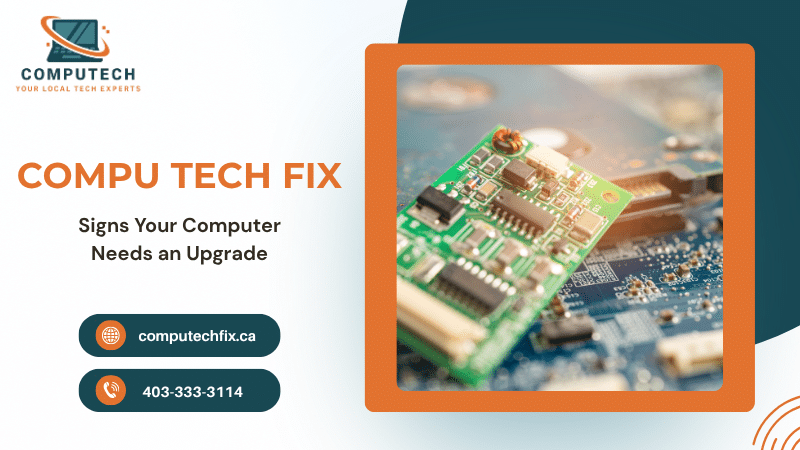
Need Help Upgrading Your Computer?
If your PC feels slow, freezes often, or struggles with Windows 11, professional upgrades and optimization can restore speed, stability, and reliability quickly.

No comment