
How to speed up Windows 11 is one of the most common questions PC users ask in 2026. Over time, many computers become slower because of startup apps, outdated hardware, low storage space, malware, or system overload.
The good news is that most Windows 11 performance problems can be fixed without replacing your computer. In this guide, you’ll learn the best ways to improve speed, optimize performance, reduce lag, and make your Windows 11 PC run faster and smoother.
Whether your PC takes too long to start, freezes randomly, struggles with multitasking, or feels slower after updates, this guide explains exactly how to speed up Windows 11 using practical methods that actually improve performance.
You’ll also learn:
- Why Windows 11 becomes slow
- The biggest performance mistakes users make
- Which upgrades matter most
- When optimization is enough
- When professional repair or upgrades are the better option
Why Windows 11 Gets Slow Over Time
Many users assume Windows 11 itself is the problem, but in reality, slow performance is usually caused by:
- Too many startup programs
- Old HDD storage instead of SSD
- Limited RAM
- Malware or unwanted software
- Outdated drivers
- Storage overload
- Background apps running constantly
- Overheating or hardware stress
Understanding the real cause is the first step to improving speed properly.
Microsoft Windows performance support
1. Disable Startup Apps You Don’t Need
One of the fastest ways to improve Windows 11 speed is reducing startup load.
Many applications automatically launch when Windows starts:
- Discord
- Adobe services
- Cloud sync tools
- Game launchers
- Background utilities
These programs consume:
- RAM
- CPU resources
- Disk usage
How to Fix It
Open:
Task Manager → Startup Apps
Disable unnecessary applications that you do not need immediately after boot.
Results You May Notice
- Faster startup time
- Better responsiveness
- Less system lag
2. Upgrade From HDD to SSD
If your computer still uses an old hard drive (HDD), this is likely the biggest reason your system feels slow.
An SSD dramatically improves:
- Boot speed
- File loading
- Program launch times
- Overall responsiveness
In real-world repair cases, SSD upgrades often make older computers feel completely different.
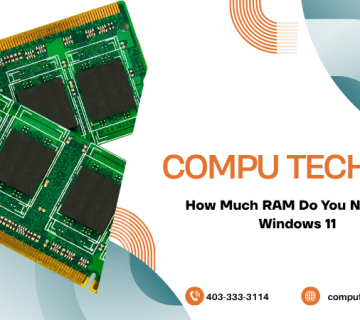
3. Increase RAM for Better Multitasking
Modern Windows systems require more memory than older versions.
If your system has:
- 4GB RAM
- Multiple browser tabs open
- Heavy applications running
performance will suffer quickly.
Recommended RAM in 2026
- 8GB minimum for basic users
- 16GB recommended for multitasking and work
Signs You Need More RAM
- Freezing while multitasking
- Slow browser performance
- Delayed application switching
4. Remove Malware and Unwanted Software
Malware is one of the hidden reasons many Windows 11 systems become slow.
Symptoms include:
- Random popups
- High CPU usage
- Browser redirects
- Slow startup
- Constant background activity
Even legitimate software can create performance issues if too many programs are installed.
What Helps
- Run full antivirus scans
- Remove unused applications
- Delete suspicious browser extensions
Virus Removal Services Calgary
5. Update Drivers and Windows Properly
Outdated drivers can cause:
- Lag
- Freezing
- Internet problems
- Display issues
- High resource usage
Windows 11 depends heavily on updated:
- Graphics drivers
- Chipset drivers
- Network drivers
Important
Avoid random third-party driver tools. Use:
- Windows Update
- Manufacturer websites
6. Free Up Storage Space
Storage overload affects performance more than many users realize.
When the system drive becomes nearly full:
- Updates slow down
- Temporary files accumulate
- Applications become unstable
What to Remove
- Temporary files
- Unused downloads
- Duplicate media
- Old applications
Windows 11 performs best when enough free storage remains available.
7. Optimize Background Processes
Many systems become overloaded with unnecessary background services.
Common resource-heavy processes include:
- Cloud syncing
- Auto-update utilities
- Browser background activity
- RGB software
- Gaming overlays
How to Improve Performance
Review:
Settings → Apps → Startup
and:
Task Manager → Processes
Reducing background activity improves:
- CPU usage
- Battery life
- Overall responsiveness
8. Improve Cooling and Airflow
Overheating is often ignored, especially in laptops.
When temperatures rise:
- CPUs throttle performance
- Fans run constantly
- Systems slow down automatically
Common Causes
- Dust buildup
- Old thermal paste
- Blocked vents
Cleaning and cooling optimization can noticeably improve speed and stability.
9. Get Professional Optimization and Hardware Diagnosis
Sometimes the problem is deeper than software settings.
Professional diagnostics help identify:
- Failing hardware
- SSD health problems
- RAM instability
- Cooling failures
- Power issues
This is especially important if:
- Your PC crashes often
- Performance suddenly dropped
- Upgrades did not solve the issue
Windows 11 Optimization vs Buying a New Computer
Many users assume slow performance means they need a new PC.
In reality, optimization and upgrades often solve the problem at much lower cost.
| Situation | Best Solution |
|---|---|
| HDD installed | SSD upgrade |
| Low RAM | RAM upgrade |
| Malware issues | System cleanup |
| Overheating | Cooling optimization |
| Very old hardware | Consider replacement |
Common Mistakes That Make Windows 11 Slower
Installing Too Many Optimization Apps
Many “PC booster” tools actually slow systems further.
Ignoring SSD Upgrades
This is one of the biggest mistakes users make.
Running Too Many Startup Apps
Background processes silently reduce performance.
Skipping Driver Updates
Outdated drivers create instability and lag.
Real-World Insight: What Most Users Get Wrong
From real repair and optimization cases:
- Many users replace PCs unnecessarily
- Slow systems are often caused by HDD storage
- Malware frequently runs unnoticed in background
- Basic optimization can dramatically improve speed
The key is identifying the root cause instead of guessing.
Who Should Optimize Windows 11?
You should improve performance if:
- Your PC feels slower than before
- Startup takes too long
- Applications freeze
- Gaming performance dropped
- Multitasking feels laggy
- Your system overheats regularly
How Much Faster Can Windows 11 Become?
Results depend on the issue, but many users experience:
Immediately:
- Faster boot time
- Faster app loading
- Reduced lag
Long-Term:
- Better stability
- Improved multitasking
- Less overheating
- Better overall responsiveness
SSD upgrades alone can completely transform older systems.
Is It Worth Speeding Up Windows 11 Instead of Replacing Your PC?
In many cases, yes.
Optimization and hardware upgrades are often:
- Faster
- More affordable
- Less disruptive
than purchasing a new computer.
Especially for systems that are only a few years old.
Final Verdict
Learning how to speed up Windows 11 is no longer just about convenience—it directly affects productivity, reliability, and long-term system health.
Most slow Windows 11 systems can be improved significantly through:
- Optimization
- SSD upgrades
- RAM upgrades
- Malware cleanup
- Driver updates
The important thing is addressing the actual cause instead of relying on temporary fixes.
Need Help Speeding Up Your Windows 11 PC?
If your computer is still slow after basic troubleshooting, professional diagnostics and optimization can help restore performance safely and effectively.
Upgrade Windows 10 to 11 Calgary
How to Contact Us Now?
For bookings and inquiries:
Call us directly at: [(403) 333-3114]
Visit our website: computechfix.ca

[…] How to Speed Up Windows 11 […]