

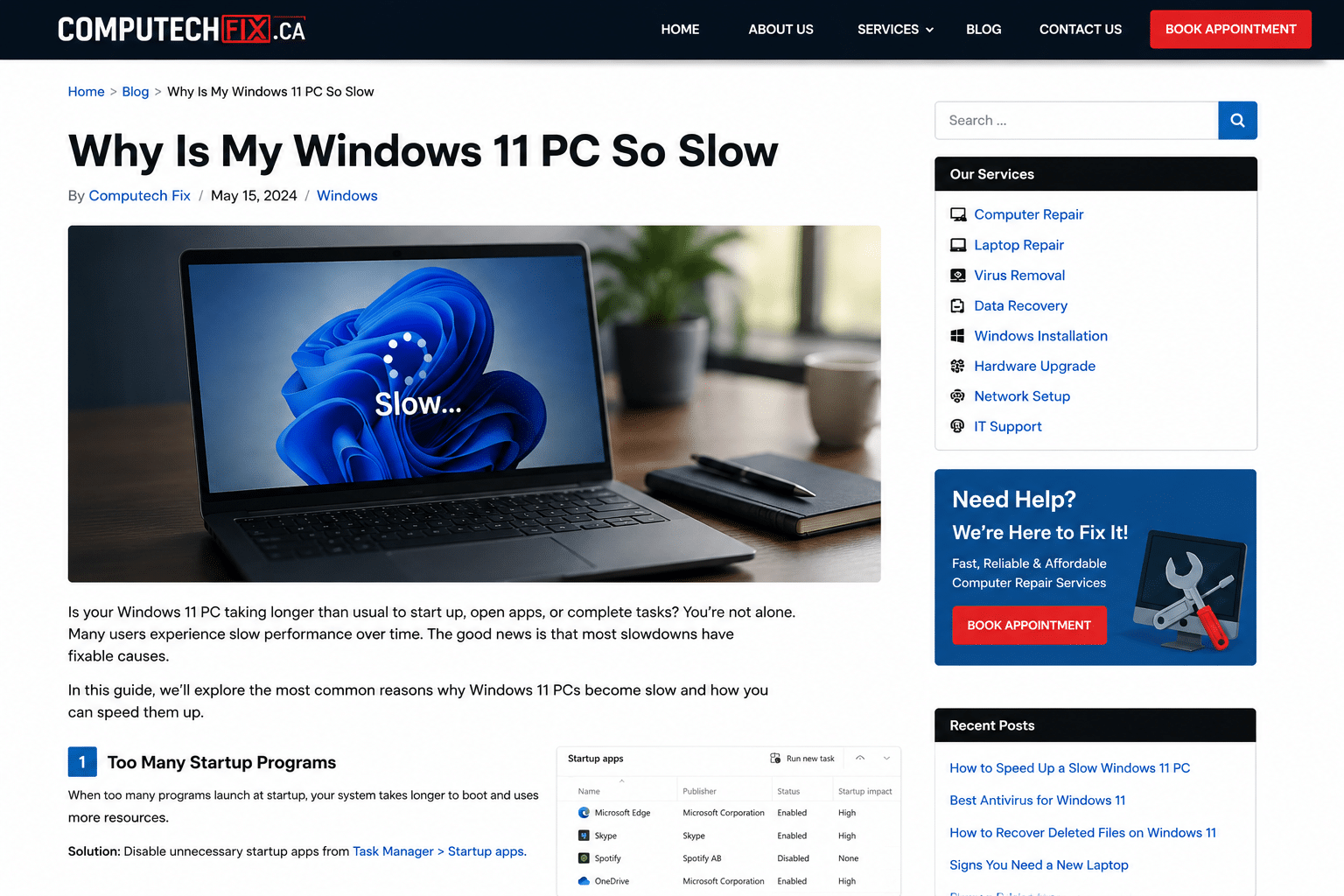
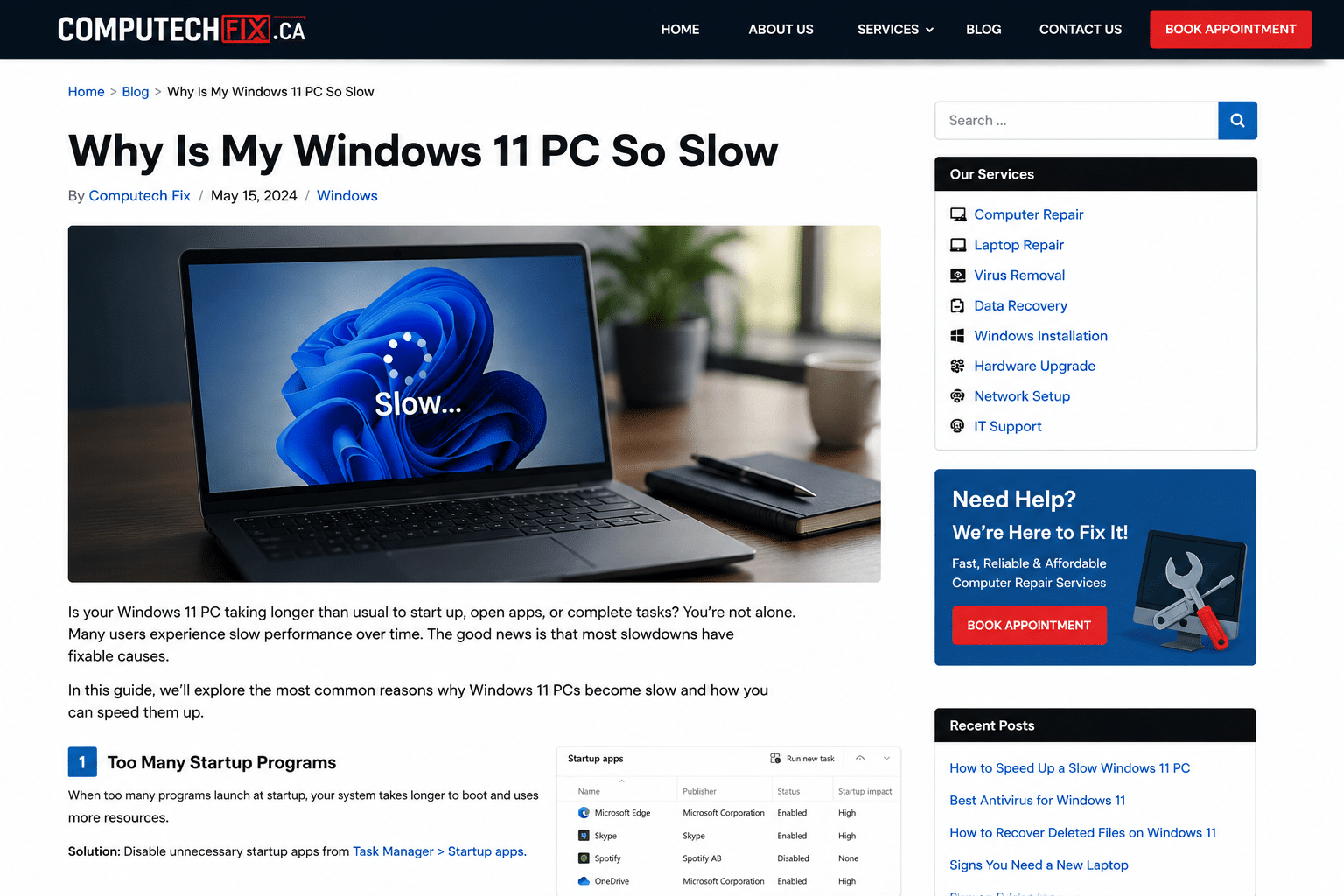
Why is my Windows 11 PC so slow? If you’ve asked this question recently, you are far from alone. In 2026, slow Windows 11 performance is one of the most common problems affecting both home users and businesses.
Many people notice their computer becoming slower over time:
- Startup takes longer
- Applications freeze
- Browsers lag
- Files load slowly
- Multitasking becomes frustrating
The problem is that most users do not know what is actually causing the slowdown. Some immediately assume they need a completely new computer, while others spend weeks trying random “speed hacks” that never solve the real issue.
In reality, most slow Windows 11 systems suffer from a combination of:
- Storage limitations
- Low RAM
- Startup overload
- Malware
- Driver issues
- Poor optimization
- Aging hardware
The good news is that many of these issues are fixable — and in many cases, performance can improve dramatically without replacing the entire PC.
In this complete guide, you’ll learn:
- Why Windows 11 PCs become slow
- The most common causes of lag and freezing
- The best ways to improve performance
- Which upgrades actually matter
- When optimization is enough
- When professional repair becomes necessary
Why Is My Windows 11 PC So Slow in 2026?
One major reason users search:
“Why is my Windows 11 PC so slow?”
is because Windows 11 places higher demands on hardware compared to older operating systems.
Modern systems now rely heavily on:
- Background security processes
- Cloud syncing
- Real-time updates
- Advanced graphics rendering
- Multitasking performance
If your computer is not properly optimized, even small issues can combine into major slowdowns.
Common causes include:
- HDD storage
- Insufficient RAM
- Malware infections
- Startup application overload
- Overheating
- Driver conflicts
- Full storage drives
- Aging hardware components
Microsoft Windows performance optimization documentation
1. Your Windows 11 PC Is Slow Because It Still Uses HDD Storage
One of the biggest reasons users ask:
“Why is my Windows 11 PC so slow?”
is outdated storage technology.
Traditional hard drives (HDDs) are significantly slower than SSDs.
Common symptoms:
- Windows takes minutes to start
- Applications open slowly
- Files take too long to load
- Freezing during multitasking
- Delayed system response
Why SSDs Matter
SSD upgrades improve:
- Boot times
- Loading speeds
- File transfers
- Overall responsiveness
In many repair cases, upgrading from HDD to SSD completely transforms system performance.
2. Why Is My Windows 11 PC So Slow During Startup?
Startup overload is another extremely common issue.
Many applications automatically launch every time Windows starts:
- Discord
- Zoom
- OneDrive
- Spotify
- Adobe software
- Game launchers
The result:
- High RAM usage
- Increased CPU load
- Slower boot times
- Delayed desktop responsiveness
How to Fix Startup Slowdowns
Open Task Manager and disable unnecessary startup applications.
This simple change often creates noticeable performance improvements immediately.
3. Low RAM Causes Windows 11 Running Slow
Windows 11 uses more memory than previous Windows versions.
If your system has limited RAM, you may experience:
- Browser freezing
- Slow multitasking
- Lag during video calls
- Delayed application switching
- High memory usage warnings
Recommended RAM in 2026
| Usage Type | Recommended RAM |
|---|---|
| Basic browsing | 8GB |
| Office & multitasking | 16GB |
| Gaming & editing | 16GB–32GB |
RAM upgrades are often one of the most cost-effective ways to improve performance.
4. Malware Is a Major Reason Windows 11 Running Slow
Malware and unwanted software are still massive causes of poor performance in 2026.
Many users never realize their system is infected because modern malware often runs silently in the background.
Common signs:
- Random popups
- Browser redirects
- High CPU usage
- Loud fan noise
- Overheating
- Extremely slow browsing
Why Malware Slows Systems
Malware consumes:
- CPU power
- RAM
- Internet bandwidth
- Background processes
Fix:
Run professional malware scans and remove suspicious applications.
Virus Removal Services Calgary
5. Why Is My Windows 11 PC So Slow When Storage Is Almost Full?
Low storage space affects performance far more than most users realize.
Windows needs free space for:
- Updates
- Temporary files
- Virtual memory
- Cache operations
When storage becomes nearly full:
- Applications respond slower
- Updates fail
- System stability decreases
How to Fix Storage Problems
Remove:
- Unused software
- Large temporary files
- Duplicate downloads
- Old backups
Use:
- Storage Sense
- Disk Cleanup tools
- Cloud storage when possible
6. Outdated Drivers Cause Windows 11 Running Slow
Drivers allow Windows to communicate correctly with hardware.
Outdated drivers may cause:
- Lag
- Crashes
- Audio issues
- Wi-Fi instability
- Graphics stuttering
Important Drivers to Update
- Graphics drivers
- Audio drivers
- Network drivers
- Motherboard chipset drivers
Keeping drivers updated improves both speed and stability.
7. Overheating Can Make Your Windows 11 PC Extremely Slow
Heat is a hidden performance killer.
When systems overheat, Windows automatically reduces performance to protect hardware.
Common causes:
- Dust buildup
- Blocked airflow
- Failing cooling fans
- Old thermal paste
Common signs:
- Loud fan noise
- Sudden lag spikes
- Hot keyboard or laptop surface
- Random shutdowns
Professional cleaning often restores stable performance.
8. Browser Overload Is More Serious Than Most Users Think
Many users search:
“Why is my Windows 11 PC so slow?”
when the actual issue is browser overload.
Modern browsers consume huge amounts of:
- RAM
- CPU resources
- Background processes
Major causes:
- Too many tabs
- Heavy browser extensions
- Streaming media
- Background synchronization
Fix:
- Reduce extensions
- Close unused tabs
- Clear cache regularly
- Restart browser sessions often
9. Background Windows Processes Reduce Performance
Windows updates and indexing services can temporarily increase:
- CPU usage
- Disk activity
- RAM consumption
This is especially common immediately after major updates.
Usually performance improves after:
- Restarting the PC
- Completing updates fully
- Allowing indexing to finish
10. Aging Hardware Makes Windows 11 Running Slow
Older computers naturally struggle more with modern software demands.
However, aging hardware does not always mean replacement is necessary.
Many older PCs still perform very well after:
- SSD upgrades
- RAM upgrades
- System optimization
- Cooling maintenance
Users often replace systems prematurely when upgrades would have solved the issue affordably.
11. Why Is My Windows 11 PC So Slow Even After Cleanup?
If your Windows 11 PC remains slow after optimization, the issue may involve:
- Failing SSD or HDD
- Advanced malware
- Driver corruption
- Hardware bottlenecks
- Cooling problems
- System file corruption
This is when professional diagnostics become important.
How to Speed Up a Windows 11 PC Properly
If you keep asking:
“Why is my Windows 11 PC so slow?”
Start with:
- SSD upgrades
- RAM upgrades
- Startup cleanup
- Malware removal
- Driver updates
- Storage optimization
- Browser cleanup
Upgrade vs Replace: What’s Smarter?
| Situation | Best Solution |
|---|---|
| HDD installed | SSD upgrade |
| Low RAM | RAM upgrade |
| PC under 5 years old | Optimize |
| Frequent hardware failures | Replace |
| Severe overheating | Repair first |
In many cases, upgrading existing hardware is significantly cheaper than buying a completely new system.
Real-World Insight: What Most Users Get Wrong
From real optimization and repair cases:
- Users often blame Windows 11 itself
- Malware problems are frequently overlooked
- Startup overload is extremely common
- Many systems only need SSD upgrades
- Storage issues are often ignored
One of the biggest misconceptions is:
“My computer is old, so I need a new one.”
In reality, optimization and upgrades often restore excellent performance.
Should You Upgrade Now to Windows 11?
If you are still using Windows 10, upgrading is strongly recommended because:
- Windows 10 support has ended
- Windows 11 receives ongoing updates
- Security protection is significantly stronger
- Modern software is optimized for Windows 11
Upgrade Windows 10 to 11 Calgary
What Results Should You Expect After Optimization?
Immediately:
- Faster startup
- Better responsiveness
- Reduced lag
- Smoother browsing
Long-Term:
- Better stability
- Improved multitasking
- Reduced crashes
- Longer hardware lifespan
- Better overall productivity
Final Verdict
If you keep wondering:
“Why is my Windows 11 PC so slow?”
The issue is usually caused by:
- HDD storage
- Low RAM
- Malware
- Startup overload
- Overheating
- Driver conflicts
- Poor optimization
The good news is that most Windows 11 systems can still be dramatically improved without replacing the entire computer.
Proper upgrades and optimization often restore speed, stability, and long-term reliability.
Need Professional Help Fixing a Slow Windows 11 PC?
If your system is freezing, lagging, or struggling with daily tasks, professional diagnostics and optimization can quickly identify the real issue and restore performance safely.
How to Contact Us Now?
For bookings and inquiries:
Call us directly at: [(403) 333-3114]
Visit our website: computechfix.ca


[…] Why Is My Windows 11 PC So Slow […]
[…] Why Is My Windows 11 PC So Slow […]