
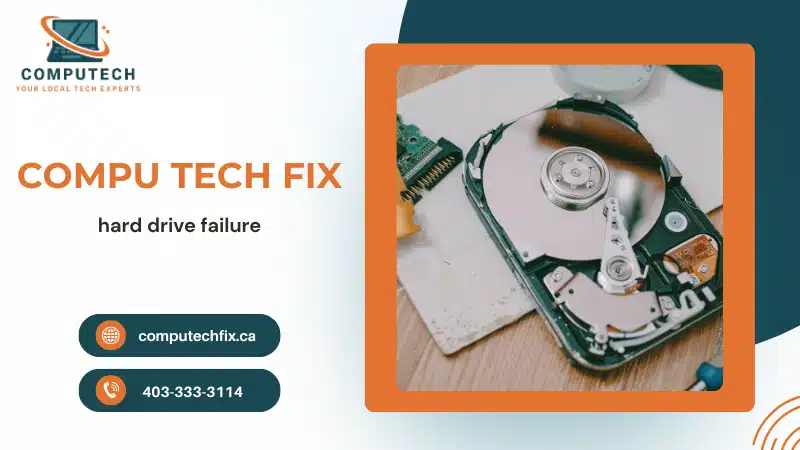
A failing hard drive is one of the most serious computer problems because it can lead to permanent data loss. Whether you are dealing with a hard drive failure, an SSD not detected issue, missing files, or a clicking hard drive, early warning signs should never be ignored.
Many users only realize something is wrong after:
- Important files disappear
- Windows stops loading
- The computer freezes constantly
- The drive stops appearing entirely
The good news is that in many cases, data can still be recovered — but acting quickly is critical.
In this guide, you’ll learn:
- The biggest signs of hard drive failure
- What causes SSD and HDD problems
- Whether deleted files recovery is possible
- What to do if a drive stops working
- When professional data recovery may help
- How to reduce the risk of permanent data loss
Why Hard Drive Failure Is More Dangerous Than Most PC Problems
Unlike slow performance or software bugs, storage failure directly threatens:
- Personal files
- Business documents
- Photos and videos
- Windows system files
- Backups
This is why searches for:
“data recovery near me”
and
“deleted files recovery”
continue growing in 2026.
Modern computers rely heavily on:
- SSD storage
- External drives
- Cloud synchronization
- Large file transfers
When storage fails unexpectedly, recovery becomes more difficult over time.
Microsoft guide to backing up and protecting files
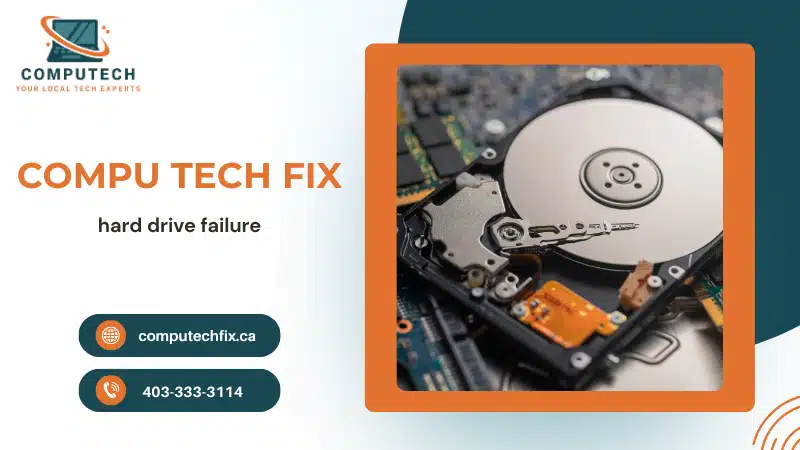
1. Clicking Hard Drive Sounds Are a Major Warning Sign
A:
“clicking hard drive”
problem is one of the clearest indicators of serious HDD failure.
Common symptoms:
- Repetitive clicking noises
- Grinding sounds
- Slow file access
- Freezing during file transfers
These sounds often indicate:
- Mechanical damage
- Read/write head failure
- Internal disk problems
If your hard drive starts clicking:
Stop using it immediately.
Continued use may worsen damage and reduce recovery chances.
2. SSD Not Detected Problems
Modern systems increasingly use SSDs instead of traditional HDDs.
However, SSDs can still fail.
One major warning sign is:
“SSD not detected”
Common symptoms:
- SSD disappears from BIOS
- Windows cannot find the drive
- Boot failures occur suddenly
- System randomly freezes
Possible causes:
- SSD controller failure
- Corrupted firmware
- Connection problems
- Power instability
Unlike HDDs, SSD failures often happen suddenly without much warning.
3. Frequent Freezing and Slow File Access
Failing drives often struggle to:
- Read files
- Write data
- Load applications
Common symptoms:
- File Explorer freezing
- Long loading times
- Windows startup delays
- Random lag spikes
Many users think their PC is simply “slow,” when the real problem is failing storage hardware.
Why Is My Windows 11 PC So Slow
4. Corrupted or Missing Files
One of the earliest signs of:
hard drive failure
is corrupted data.
Common examples:
- Files won’t open
- Photos become damaged
- Documents disappear
- Error messages appear during access
If file corruption increases over time, backup your data immediately.
5. Windows Startup Problems
Storage failure commonly causes:
- Boot loops
- Black screens
- Automatic repair errors
- Missing operating system messages
This happens because Windows depends entirely on healthy storage devices.
6. Can You Recover Deleted Files?
Many users ask:
“Can you recover deleted files?”
The answer is:
Sometimes, yes.
Deleted files are not always erased immediately.
In many cases:
- File data still exists temporarily
- Recovery software may help
- Professional recovery services improve success rates
However:
The longer you continue using the drive, the lower the recovery chances become.
7. What Causes Hard Drive Failure?
Common causes include:
- Physical damage
- Overheating
- Aging hardware
- Sudden power loss
- Manufacturing defects
- Excessive wear
Laptop drops and overheating are especially common causes of storage damage.
8. Signs Your SSD or HDD May Fail Soon
Watch for:
- Strange noises
- Frequent crashes
- Slow boot times
- File corruption
- Drive disappearing randomly
- Blue screens during startup
These warning signs should never be ignored.
9. What To Do If Hard Drive Stops Working
If your drive suddenly fails:
Step 1:
Stop using the computer immediately.
Step 2:
Do not repeatedly restart the system.
Step 3:
Avoid installing recovery software onto the failing drive.
Step 4:
Disconnect external drives safely.
Step 5:
Seek professional diagnostics if important data is involved.
Using a damaged drive repeatedly can permanently reduce recovery success.
Deleted Files Recovery: What Actually Works?
Deleted files recovery success depends on:
- How recently files were deleted
- Whether new data overwrote them
- The type of storage device
- Physical drive condition
Recovery is more likely when:
- You stop using the drive quickly
- The drive still powers on
- Physical damage is limited
HDD vs SSD Failure Differences
| HDD Failure | SSD Failure |
|---|---|
| Clicking noises common | Usually silent |
| Gradual slowdown | Often sudden |
| Mechanical parts fail | Electronic failure |
| Easier physical diagnosis | Harder to predict |
Both types can cause serious data loss if ignored.
Real-World Insight: What Most Users Get Wrong
From real repair and recovery cases:
- Many users continue using failing drives too long
- Clicking sounds are often ignored
- DIY recovery attempts sometimes worsen damage
- SSD failures happen more suddenly than users expect
One major misconception:
“If the drive still works sometimes, it’s safe.”
In reality, intermittent failure often means the drive is already deteriorating.
Why Professional Diagnostics Matter
Professional diagnostics help determine:
- Whether the drive is recoverable
- Whether hardware damage exists
- Whether files can still be restored
- Whether replacement is necessary
This reduces:
- Permanent data loss risks
- Further hardware damage
- Unnecessary replacement costs
Onsite Computer Repair Service
How To Prevent Future Data Loss
The best protection is prevention.
Recommended steps:
- Use automatic backups
- Store files in cloud services
- Replace aging drives early
- Monitor SSD health regularly
- Avoid overheating
Regular backups are far cheaper than emergency recovery.
Final Verdict
If you notice:
- Clicking hard drive sounds
- SSD not detected errors
- Missing files
- Slow file access
- Startup failures
your system may already be experiencing hard drive failure.
The sooner you act, the better your chances of:
- Recovering deleted files
- Protecting important data
- Avoiding complete drive failure
Ignoring storage warning signs often leads to permanent data loss later.
Need Help With Hard Drive Failure or Data Recovery?
If your SSD disappears, your hard drive clicks, or important files are missing, professional diagnostics and recovery assistance can help protect your data before the problem gets worse.
Onsite Computer Repair Service
FAQ
What are the signs of hard drive failure?
Common signs include clicking noises, missing files, slow performance, startup issues, and SSD detection problems.
Can deleted files be recovered?
Yes, in many cases deleted files recovery is possible if the drive has not been heavily overwritten.
Why is my SSD not detected?
Possible causes include firmware failure, power issues, damaged connections, or SSD controller problems.
Is a clicking hard drive dangerous?
Yes. Clicking usually indicates mechanical HDD failure and should be treated immediately.
What should I do if my hard drive stops working?
Stop using the device, avoid repeated restarts, and seek professional diagnostics if important data is involved.



No comment