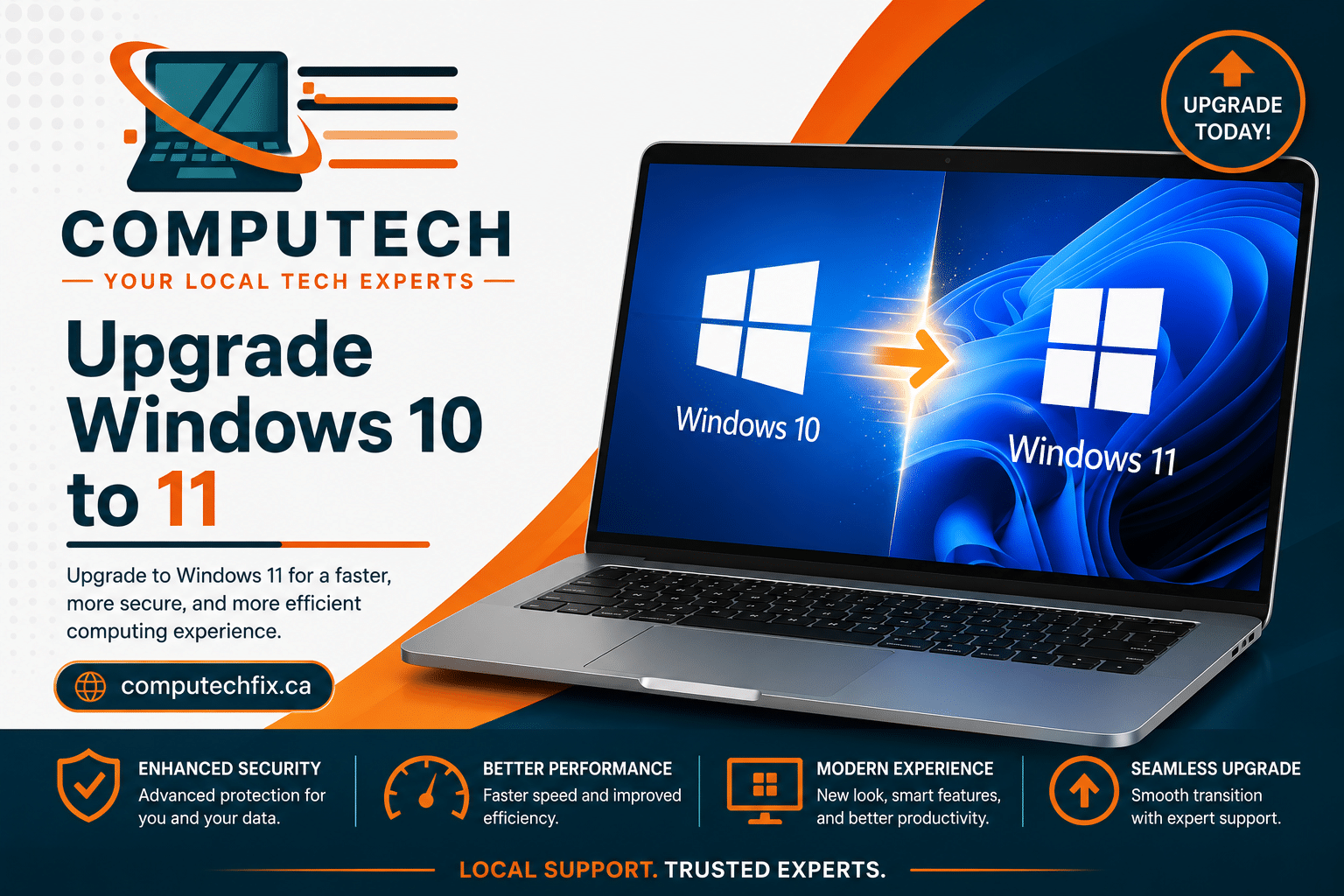
Upgrade Windows 10 to 11 safely and improve your device performance
If you want to Upgrade Windows 10 to 11 safely without losing files, improving performance, or causing compatibility problems, it’s important to prepare your computer correctly before starting the installation process.
Many Calgary users experience issues like slow performance, TPM errors, failed installations, and driver problems when trying to Upgrade Windows 10 to 11 on older laptops and desktop PCs. Proper optimization, SSD upgrades, RAM improvements, and system diagnostics can make the upgrade process much smoother and safer.
But the problem is this:
A lot of people try upgrading their computers on their own and run into serious issues.
Some systems become slower. Some users lose files. Others see the famous message:
“This PC Can’t Run Windows 11.”
And many older laptops simply are not optimized correctly before the upgrade starts.
At CompuTechFix, we help Calgary homeowners, professionals, students, gamers, and small businesses safely upgrade their systems while improving performance at the same time.
This guide explains everything you need to know about upgrading from Windows 10 to Windows 11, including compatibility, TPM 2.0, SSD upgrades, RAM optimization, installation issues, performance fixes, and when professional onsite support can save you hours of frustration.
Why So Many People Are Upgrading to Windows 11
Windows 11 is not just a visual redesign.
Microsoft rebuilt major parts of the operating system to improve:
Security
Speed
Stability
Multitasking
Gaming performance
Memory management
Modern hardware compatibility
Compared to older Windows 10 installations that have been running for years, Windows 11 often feels cleaner and more responsive when installed correctly.
Users upgrading properly usually notice:
Faster startup times
Better SSD performance
Improved battery optimization
Smoother multitasking
Better gaming support
Cleaner desktop organization
Better support for newer processors
Improved security protection
However, the upgrade experience depends heavily on your hardware and the condition of your computer before installation.
A poorly maintained computer upgraded directly to Windows 11 may actually perform worse.
That’s why preparation matters.
Windows 10 End of Support Is a Big Deal
One major reason users are upgrading is Microsoft’s Windows 10 support timeline.
As operating systems age, they stop receiving:
Security updates
Bug fixes
Driver support
Feature updates
Application compatibility improvements
Once support slows down, systems become more vulnerable to:
Malware
Ransomware
Security exploits
Software instability
Driver problems
For businesses, remote workers, and anyone storing personal data, staying on unsupported systems becomes risky.
That’s why many Calgary users are upgrading now instead of waiting until problems appear.
Can Your PC Run Windows 11?
This is the first question almost every customer asks.
Unfortunately, not every Windows 10 computer supports Windows 11.
Microsoft introduced stricter hardware requirements to improve overall security and stability.
without risking major mistakes during installation.
Apple and Mac Users Switching to Windows
Many users moving from Mac systems to Windows 11 want:
Better gaming support
More software flexibility
Easier hardware upgrades
Better customization
However, switching platforms can create challenges involving:
File migration
External drives
Cloud syncing
Email configuration
Printer compatibility
Apple and Mac Repair Service support can help simplify transitions between ecosystems.
Signs Your Computer Needs Upgrades Before Windows 11
You may benefit from upgrades if your computer:
Starts very slowly
Freezes often
Overheats
Struggles with multiple tabs
Has low storage space
Crashes during updates
Makes loud noises
Runs constantly at high fan speeds
These symptoms often indicate:
Old HDD storage
Insufficient RAM
Cooling problems
Malware
Aging hardware
rather than Windows itself.
Frequently Asked Questions About Upgrade Windows 10 to 11
Can I upgrade from Windows 10 to Windows 11 for free?
Yes, many eligible Windows 10 systems can upgrade to Windows 11 without purchasing a new license. However, your computer must meet Microsoft’s compatibility requirements.
Will I lose my files when upgrading to Windows 11?
Normally, files and applications stay intact during a standard upgrade. However, backups are always recommended before installation in case unexpected issues occur.
Why does my PC say “This PC Can’t Run Windows 11”?
This message usually appears because:
TPM 2.0 is disabled
Secure Boot is turned off
The processor is unsupported
BIOS settings need updating
The system lacks required hardware specifications
Is Windows 11 faster than Windows 10?
On properly optimized systems, Windows 11 often feels faster and smoother. SSD upgrades, RAM upgrades, and driver optimization can improve performance even more.
Can older computers run Windows 11?
Some older systems can run Windows 11 successfully after:
BIOS updates
TPM activation
SSD upgrades
RAM upgrades
Driver updates
However, very old hardware may struggle with performance or compatibility.
Should I upgrade my laptop or buy a new one?
That depends on:
Hardware condition
Storage speed
RAM capacity
Cooling performance
Overall age of the device
Many older laptops become dramatically faster after SSD and RAM upgrades.
How long does upgrading to Windows 11 take?
Upgrade time depends on:
Computer speed
Internet speed
Storage type
Number of files
Driver compatibility
Some upgrades finish in under an hour, while older systems may take several hours.
What happens if the Windows 11 installation fails?
Failed installations may cause:
Boot loops
Black screens
Missing drivers
Wi-Fi issues
Performance problems
Professional diagnostics can usually identify and fix the root cause safely.
Why is my computer slower after upgrade to Windows 11?
This is often caused by:
Old HDD storage
Low RAM
Driver conflicts
Overheating
Background software
Malware
Windows 11 itself is not always the direct cause.
Do I need TPM 2.0 for Windows 11?
Yes, TPM 2.0 is one of Microsoft’s main requirements for official Windows 11 support.
What is Secure Boot?
Secure Boot is a BIOS security feature that helps protect your computer from unauthorized startup software and malware.
Is it better to clean install Windows 11?
Clean installations usually provide:
Better performance
Fewer software conflicts
Improved stability
But they require backups and reinstalling programs afterward.
Can Windows 11 improve gaming performance?
Yes. Windows 11 includes gaming technologies like:
DirectStorage
Better CPU scheduling
Improved memory management
However, gaming performance still depends heavily on your hardware.
Can upgrading damage my files?
Upgrades are generally safe, but failing drives or interrupted installations can sometimes cause data loss. Backups are strongly recommended.
What should I do before upgrading?
Before installing Windows 11, you should:
Backup important files
Check drive health
Remove malware
Update drivers
Verify TPM and Secure Boot
Free storage space
Why does my Wi-Fi stop working after upgrading?
This is usually related to:
Driver incompatibility
Old wireless adapters
Corrupted networking settings
Router configuration issues
Is Windows 11 safer than Windows 10?
Yes. Windows 11 includes stronger:
Encryption
Hardware protection
Secure Boot verification
Malware defenses
Credential protection
Can I go back to Windows 10 after upgrading?
In many cases, yes. Windows provides a rollback option for a limited time after upgrading, though backups are still highly recommended.
Do I need an SSD for Windows 11?
Windows 11 can technically run on HDD storage, but SSDs provide a dramatically better experience with:
Faster startup
Better multitasking
Faster updates
Improved responsiveness
Should businesses upgrade to Windows 11?
For many businesses, yes — especially for improved security and long-term software compatibility. Proper planning helps avoid downtime and networking problems.
Final Thoughts
Upgrading from Windows 10 to Windows 11 can significantly improve security, speed, stability, and overall user experience when done correctly.
But successful upgrades require more than simply pressing “Install.”
System health, hardware compatibility, cooling performance, malware status, drivers, networking, and storage quality all affect the final result.
For many Calgary users, combining Windows 11 upgrades with:
creates a smoother, safer, and faster long-term computing experience.
Whether you need SSD upgrades, RAM optimization, virus removal, or professional onsite support, upgrading properly can make a huge difference in long-term performance. If you plan to Upgrade Windows 10 to 11, preparing the system correctly is the best way to avoid installation problems and improve overall speed and stability.
How to Contact Us Now?
For bookings and inquiries:
Call us directly at: [(403) 333-3114] Visit our website:computechfix.ca




[…] Upgrade Windows 10 to 11 Calgary […]
[…] Upgrade Windows 10 to 11 Calgary […]