
Windows 11 is designed for speed, multitasking, and modern performance — but many users never experience its full potential because their computers still rely on outdated hardware. One of the biggest reasons systems feel slow in 2026 is simple: traditional hard drives can no longer keep up with modern operating systems.
That’s why more users are searching for the best SSD upgrades for Windows 11.
If your computer takes too long to boot, applications freeze, files load slowly, or multitasking feels frustrating, upgrading to an SSD is often the single biggest performance improvement you can make.
In many real-world repair cases, users assume they need a completely new computer when the actual solution is much simpler and far more affordable: replacing the old HDD with a modern SSD.
In this guide, you’ll learn:
- Why SSD upgrades matter for Windows 11
- The difference between SSD and HDD
- Which SSD upgrades are best in 2026
- How SSDs improve real-world performance
- Whether your PC supports SSD upgrades
- When upgrading makes more sense than replacing your computer
Why SSD Upgrades Matter for Windows 11
Windows 11 relies heavily on:
- Faster storage access
- Background system processes
- Real-time security tasks
- Multitasking performance
- Modern application loading
Older HDD drives struggle with these demands, which creates:
- Slow startup times
- Delayed application launches
- Freezing during multitasking
- Long loading screens
- General system lag
This is why one of the best ways to improve performance is investing in the best SSD upgrades for Windows 11 instead of replacing the entire computer.
Microsoft Windows 11 hardware recommendations
SSD vs HDD: What’s the Difference?
Many users ask:
“Why is my Windows 11 PC so slow?”
The answer is often outdated storage technology.
| Feature | HDD | SSD |
|---|---|---|
| Speed | Slow | Extremely Fast |
| Boot Time | 1–3 Minutes | 10–20 Seconds |
| Noise | Mechanical Noise | Silent |
| Durability | Lower | Higher |
| Performance | Limited | Excellent |
Traditional hard drives use spinning mechanical disks, while SSDs use flash memory technology that allows dramatically faster data access.
Why the Best SSD Upgrades for Windows 11 Make Such a Huge Difference
SSD upgrades improve nearly every part of daily computer use.
Immediate improvements:
- Faster startup
- Faster file access
- Smoother multitasking
- Better gaming performance
- Faster software installation
- Reduced freezing and lag
Many users are shocked by how different their computer feels after upgrading.
Signs Your Computer Needs an SSD Upgrade
Your system likely needs an SSD if:
- Startup takes longer than 1 minute
- Applications open slowly
- Windows freezes regularly
- Multitasking feels sluggish
- File transfers are slow
- Windows 11 performance feels inconsistent
These symptoms are extremely common with older HDD systems.
Why Is My Windows 11 PC So Slow
Types of SSD Upgrades for Windows 11
Not all SSDs are the same.
1. SATA SSD
SATA SSDs are:
- Affordable
- Compatible with many older PCs
- Much faster than HDDs
Best for:
- Older laptops
- Budget upgrades
- General performance improvement
2. NVMe SSD
NVMe drives are significantly faster than SATA SSDs.
Benefits:
- Ultra-fast boot times
- Better gaming performance
- Faster large file transfers
- Improved productivity workflows
Best for:
- Modern laptops
- Gaming PCs
- Creative workstations
3. External SSD
External SSDs provide:
- Portable storage
- Backup solutions
- Faster external file access
However, they do not improve internal system speed like replacing the main drive does.
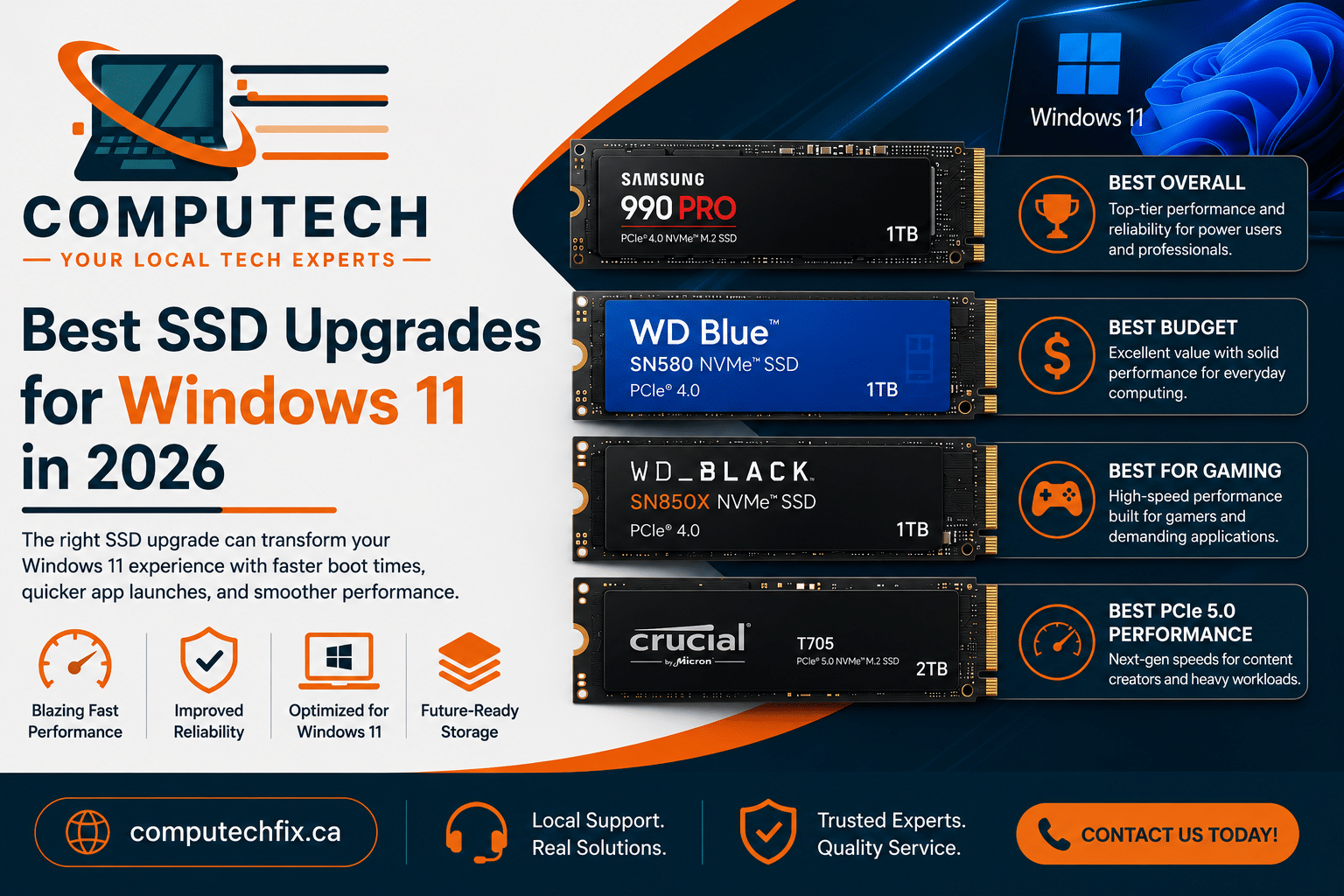
Best SSD Upgrades for Windows 11 in 2026
The best SSD depends on:
- Your motherboard compatibility
- Storage requirements
- Budget
- Performance expectations
Recommended upgrade sizes:
| Usage Type | Recommended SSD Size |
|---|---|
| Basic use | 500GB |
| Gaming & work | 1TB |
| Heavy editing | 2TB+ |
How Much Faster Will Windows 11 Be After an SSD Upgrade?
Many users ask whether SSD upgrades are actually worth it.
In real-world use, SSD upgrades often reduce:
- Boot times by 70–90%
- Application loading times dramatically
- File transfer delays significantly
The difference is immediately noticeable.
SSD Upgrade vs Buying a New Computer
This is one of the smartest financial decisions many users can make.
Upgrade if:
- Your PC is under 5 years old
- Performance is the main issue
- Hardware still works properly
Replace if:
- Multiple hardware components are failing
- System is extremely outdated
- Repair costs exceed replacement value
For many users, SSD upgrades restore excellent performance at a fraction of the cost of a new computer.
Common Mistakes Users Make When Upgrading SSDs
Many users attempt DIY upgrades without preparation.
Common mistakes:
- Buying incompatible SSDs
- Forgetting data backups
- Incorrect Windows installation
- BIOS configuration problems
- Cloning errors
Professional installation helps avoid:
- Data loss
- Compatibility issues
- Setup mistakes
Does Windows 11 Run Better on SSD?
Absolutely.
In fact, Windows 11 is heavily optimized for SSD performance.
Users typically experience:
- Faster updates
- Better multitasking
- Smoother browsing
- Better responsiveness overall
This is one reason many users searching:
“How to speed up Windows 11”
eventually discover SSD upgrades are the best solution.
Real-World Insight: What Most Users Get Wrong
From real repair and upgrade cases:
- Many users replace PCs unnecessarily
- Some believe Windows 11 itself is slow
- Others ignore failing HDD performance
One of the most common repair outcomes:
SSD upgrades completely transform system usability.
Often the computer itself is still perfectly capable — the storage is simply outdated.
Who Should Upgrade to SSD?
SSD upgrades are ideal for:
- Remote workers
- Students
- Business users
- Gamers
- Older laptop owners
- Anyone frustrated with slow startup and lag
When an SSD Upgrade May Not Be Enough
In some situations, SSD upgrades alone may not fully solve performance problems.
Additional upgrades may be needed if:
- RAM is too low
- Malware exists
- Cooling issues occur
- Hardware is failing
What Results Should You Expect After an SSD Upgrade?
Immediately:
- Faster startup
- Better responsiveness
- Faster application launches
- Reduced freezing
Long-Term:
- Better productivity
- Improved multitasking
- Longer usable lifespan for your computer
- Better Windows 11 experience overall
Final Verdict
Investing in the best SSD upgrades for Windows 11 is one of the smartest and most cost-effective ways to improve computer performance in 2026.
For many users, SSD upgrades provide:
- Massive speed improvements
- Better multitasking
- Faster startup
- Improved reliability
Before replacing your entire computer, upgrading to SSD may deliver everything you actually need — at a much lower cost.
Need Professional SSD Upgrade Help?
If your Windows 11 computer feels slow, freezes often, or struggles with daily tasks, professional SSD upgrades and optimization can dramatically improve performance safely and efficiently.
How to Contact Us Now?
For bookings and inquiries:
Call us directly at: [(403) 333-3114]
Visit our website: computechfix.ca

[…] Best SSD Upgrades for Windows 11 […]